Colour
White
USB
-
Connectivity
WiFi Only
Number of Ports
1 Port
LTE CPE B310 is a new 4G LTE CPE Router with technology that enables you to browse the internet and download at high optimum speed, at home, at your office or at a business center.It Supports Ntel 4G, Airtel 4G, Airtel 3G, MTN 4G, MTN 3G, 9Mobile 4G, 9Mobile 3G, GLO 4G, GLO 3G, Smile 4G Etc...
It does not support Spectranet and Swift Network in Nigeria.
Key Technology
150MBbps download speed support LTE Cat4, leading the industry200 meters coverage support Wi-Fi 11n2*2, up to 32 usersHiLink APP: Use smart phone's or pads APP for easier managementVPN Passthriugh: Convenient for small enterprise set up private network.Voice Service: Support voice function.Product SpecificationsWi-Fi 802.11 b/g/n access point & 2x2 MIMO, 4 SSID configuration and Wps supportedLTE Cat4/DC-HSPA+/HSPA+/HSPA/UMTS/EDGE/GPRS/ GSM.FDD LTE: Download speed up to 150Mbps/Upload speed up to 50Mbps @20Mbps.TDD LTE : Download speed up to 112Mbps/Upload speed up to 10Mbps @20Mbps.High-speed Data Service & Voice Service.SMS and Group message (Up to 10 numbers) supported.Those features vary with the actual network environment.
1. Getting to know your B310
a. Power indicator
On: the B310 is powered on.Off: the B310 is powered off.
b. Network mode indicator
Steady cyan: connected to an LTE networkSteady blue: connected to a 3G network.Steady yellow: connected to a 2G network.Steady green: connected to an Ethernet network.Steady red: The SIM is not recognized, the PIN has not been entered, or the PIN verification failedFailed to connect to a mobile network or an Ethernet network.
c. Wi-Fi/WPS indicator
Steady on: Wi-Fi turned on.Blinking: a WPS connection is being set up.Off: Wi-Fi turned off.
d. LAN/WAN
Steady on: LAN/WAN port is connected to a LAN device or an Ethernet port.Blinking: data is being transmitted through the LAN/WAN port.Off: LAN/WAN port is not connected to a LAN device or an Ethernet port.
e. Signal Strength indicator
On: signal reception available (more bars mean better reception)Off: no reception.
f. SIM card slot
Install a standard SIM card to access the internet via an LTE/3G/2G data connection.
g. External antenna port
Connect to external antenna after remove the cover.
h. WPS button
Press and hold for 2 or more seconds until is blinking to active WPS connection when Wi-Fi is turned on.
i. Power button
Press and hold for about 3 seconds to power the B310 on or off.
j. Reset button
Restoring the default settings of the B310 will erase all previous settings.
When the B310 is powered on, use a sharply pointed object to press and hold for about 3 seconds until the indicator is blinking to restore the B310 to its factory settings. After the factory defaults are restored, the B310 will restart automatically.
k. Power port
Connect to the compatible power adapter
l. LAN/WAN port
Working as a LAN port when connected to a computer, switch, or other LAN device.Working as a WAN port when connected to an Ethernet port on the wall.
m. Telephone port: connect to a telephone.
2. Installation
a. Accessing the Internet using an LTE, 3G, or 2G network
step 1: Installing the SIM card
- Slide off the card slot cover
- Insert the SIM card into the card slot. Ensure that the beveled edge of the SIM card aligns with that of the card slot.
- Close the card slot cover.
Step 2: Connecting cables
- To prevent interference caused by radio signals, place the B310 at least 1 meter (3.28 feet) away from telephone and other electrical devices.
Once connected to a power outlet, the B310 automatically powers on
- Power adapter- Computer- Telephone- Laptop, tablet, or smart phone.
Optional: Installing the external antenna
- Power off the B310 and disconnect it from the power outlet.
- Remove the cover from the antenna port. (keep it in a safe place)
- Install one or two external antennas as you need. Make sure the anntennas are securely connected to the antenna ports.
b. Accessing the Internet using Ethernet
Connect the B310 to a well-mounted Ethernet port or an ADSL modern for internet access.
- To prevent interference caused by radio signals, place the B310 at least 1 meter (3.28 feet) away from telephone and other electrical devices.
once connected to a power outlet, the B310 automatically powers on.
- Power adapter- Ethernet port on the wall- Telephone- Laptop, tablet, or smart phone
3. Setting up a Wi-Fi connection
make sure your client (computer, tablet, or smartphone) also supports wi-fi
Step 1: Enabling Wi-Fi on the B310
When the indicator is steady on, the Wi-Fi function of the B310 is tured on.
Step 2: Recording the SSID and Wi-Fi Key
The default SSID and Wi-Fi key are printed on the B310 botton label.
Step 3: Setting up a Wi-Fi connection on your client
method 1: Setting up a Wi-Fi connection manually
- From your Wi-Fi enabled client, scan for wireless networks in your area
- Connect to the network name that matches the SSID found on the device label.
- When prompted for password, enter the Wi-Fi key found on the device label (The Wi-Fi key is case sensitive). Your client will notify you when it is connected.
method 2: Setting up a Wi-Fi connection through WPS
if the client supports WPS, you can set up a WPS connection as follows:
- Ensure that Wi-Fi is enabled on the client.
- Press and hold the WPS button for 2 or more seconds. The indicator then starts blinking.
- Activate the WPS connection on the client in 2 minutes.
4. Configuring your B310
- After a client is connected to the B310 through Wi-Fi or LAN port, launch a browser on the client and visit //192.168.8.1.
- Enter the user name (admin by default) and password (admin by default) to log in to the web management page.
- Follow the quick setup wizard to check or set network connection parameters step by step. For details , see the help information on the web management page.
5. For more help
if you are experiencing any issues with the B310
Restart the B310
see the help infomation on the web management page.Restore the B310 to its factory settings.Contact your service provider
Get the B310 LTE CPE Router , and you will be glad you did.
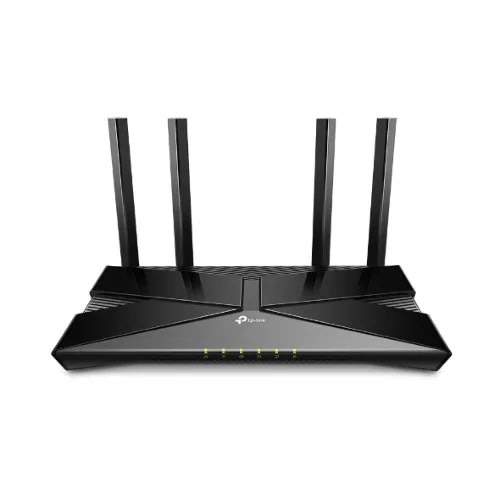
TP-Link Archer Dual-band WiFi -6 Routers Ax23-Ax1800
Number of Ports4 Ports
WiFi Coverage ThroughoutYour Home4× high-performance external antennas boost WiFi signals throughout your home. Beamforming technology detects devices and concentrates wireless signal strength towards them, especially for those in previously hard-to-reach areas.TP-Link OneMesh™Flexibly Create Whole Home WiFiWant to build a whole-home WiFi? Archer AX23 supports OneMesh to form seamless coverage throughout your home, preventing drops and lag when moving between signals.Ultra-Fast Smart RoamingUnified ManagementWPA3—The Next Level of CybersecurityThe latest WiFi security protocol, WPA3, brings new capabilities to improve cybersecurity in personal networks. More secure encryption in WiFi password safety and enhanced protection against brute-force attacks combine to safeguard your home WiFi.Super-Fast 1.8 Gbps Wi-Fi – Enjoy smooth 4K streaming and downloading with super-fast Wi-Fi speeds of 1.8 Gbps.Connect More Devices – Communicates with more devices using OFDMA while simultaneously reducing lag.Broader Coverage – Improved algorithm, beamforming, and high-performance antennas enhance the Wi-Fi coverage performance.Next-Gen Platform – The Next-Gen High-Efficiency Chipset provides fast and stable Wi-Fi while saving power consumption.Parental Controls – Enjoy the most versatile yet free parental controls features among all routers, including URL blocking, profile management, pausing, and more.OneMesh – Use with OneMesh extenders to get whole-home coverage and enjoy smooth roaming between signals.
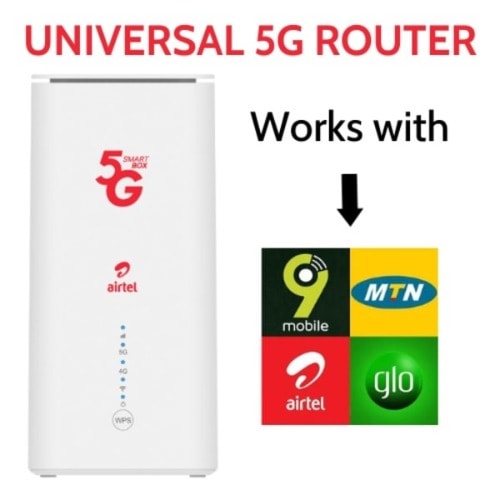
Airtel 5g Lte Universal Wifi Router For All Network Plus Free Unlimited Data
Pls kindly visit the nearest Airtel Office to register the SIM card that comes with it. And get unlimited free browsing for one month
A router is a device that connects to a wireless network and allows multiple devices to use the same Internet connection. This 5G router does just that, but in this case, connects to 5G network and allows you to share it via a WiFi hotspot to your smartphone, laptop, tablet, etc. The 5G router allows you to connect up to 32 devices and comes with unlimited free browsing for one month.
This router is compatible with a wide range of networks, including Ntel 4G, Airtel 5G, 4G & 3G, Glo 5G, 4G & 3G, MTNg 5G, 4G & 3G, 9Mobile 4G & 3G, and Smile 4G, bid farewell to connectivity limitations. Connect devices within a 100-meter range, including home phones and desktops, ensuring connectivity throughout your home.
Customer Benefits:
Access to super-fast browsing. This Broadband 5G Router offers faster speed and performance than 3G & 4G.
Connecting multiple devices (up to 32) to the Router.
Superior streaming, gaming, data download, and uploads. Online games and videos are faster, smoother, and more realistic.
Wide Wi-Fi connection range.
Unlimited data bonus on activation, valid for one month.
What you get
5G Network
10x Faster than 4G
Superior Streaming
Easy to Install
Multiple Devices
Connectivity: WiFi + LAN
Please Note:
Our Routers' stands out from the typical Airtel 5g Routers as it has been unlocked to work with SIM cards from various other networks
It is the Airtel SIM card that comes with the router that has unlimited free browsingt.
Order Yours Now while this Unlimited data bonus offer last.
Airtel 5g Lte Universal Wifi Router For All Network Plus Free Unlimited Data
Description
Weight 1.00 kg
Colour Not Applicable
Connectivity 5G
Number of Ports 32 Ports
Pls kindly visit the nearest Airtel Office to register the SIM card that comes with it. And get unlimited free browsing for one month
A router is a device that connects to a wireless network and allows multiple devices to use the same Internet connection. This 5G router does just that, but in this case, connects to 5G network and allows you to share it via a WiFi hotspot to your smartphone, laptop, tablet, etc. The 5G router allows you to connect up to 32 devices and comes with unlimited free browsing for one month.
This router is compatible with a wide range of networks, including Ntel 4G, Airtel 5G, 4G & 3G, Glo 5G, 4G & 3G, MTNg 5G, 4G & 3G, 9Mobile 4G & 3G, and Smile 4G, bid farewell to connectivity limitations. Connect devices within a 100-meter range, including home phones and desktops, ensuring connectivity throughout your home.
Customer Benefits:
Access to super-fast browsing. This Broadband 5G Router offers faster speed and performance than 3G & 4G.
Connecting multiple devices (up to 32) to the Router.
Superior streaming, gaming, data download, and uploads. Online games and videos are faster, smoother, and more realistic.
Wide Wi-Fi connection range.
Unlimited data bonus on activation, valid for one month.
What you get
5G Network
10x Faster than 4G
Superior Streaming
Easy to Install
Multiple Devices
Connectivity: WiFi + LAN
Please Note:
Our Routers' stands out from the typical Airtel 5g Routers as it has been unlocked to work with SIM cards from various other networks
It is the Airtel SIM card that comes with the router that has unlimited free browsingt.
Order Yours Now while this Unlimited data bonus offer last.
Engineered by SpaceX, Starlink is designed to deliver high-speed, low-latency internet to the most rural and remote locations around the world.
Starlink enables activities that historically have not been possible with satellite internet, including streaming, online gaming, video calls, and more. Your Starlink Kit is designed for self-install and arrives with everything you need to get online within minutes.
Stream movies, make video calls, play online games and more
With Starlink, users can engage in activities that historically have not been possible with satellite internet.
Monthly service plan required
Standard Kit is best paired with the Residential & Roam service plans. Residential: for use at a fixed location, may not be available in all areas. Roam: for use at any location where Starlink has coverage, immediately available.
Easy self-install
Your Starlink Kit arrives with everything you need to get online including your Starlink, Wi-Fi router, cables, and base.
No contracts, cancel service at any timeTry any Starlink service and if not satisfied, cancel service at any time.
Works anywhere with a clear view of the skyStarlink needs a clear view of the sky to connect to satellites.
Weather resistantDesigned and rigorously tested to handle a wide range of temperatures and weather conditions
Manage Starlink on the mobile appDownload the Starlink app to check which service plans are available in your area and to determine the best set up location before install.
WHAT’S IN THE BOXDishBaseRouterStarlink Cable (15.2m)AC Cable (1.8m
NOTE THAT SERVICE IS NOT AVAILABLE IN CERTAIN AREAS INCLUDING LAGOS, OWERRI, RIVERS, BAYELSA, ABUJA, AND SOME PARTS OF KANO AND DELTA. PLEASE SEE THE AVAILABILITY MAP HTTPS://WWW.STARLINK.COM/NG/MAP