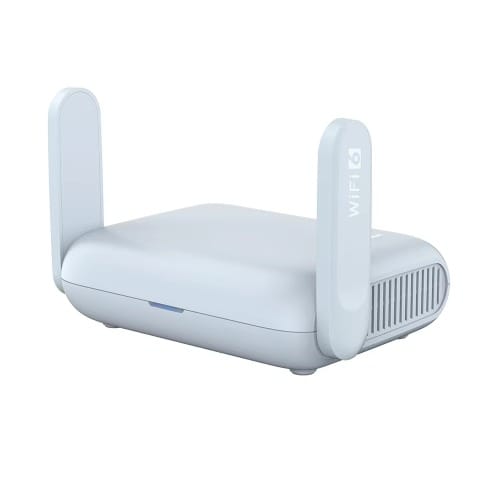
POCKET-SIZED AX3000 VPN ROUTER FOR NETWORK SECURITY
BERYL AX (GL-MT3000) IS AN AX3000 POCKET-SIZED TRAVEL ROUTER THAT USES THE WI-FI 6 PROTOCOL. IT IS AN UPGRADED VERSION OF BERYL (GL-MT1300), IT RUNS ON MT7981B 1.3GHZ DUAL-CORE PROCESSOR, OFFERING MORE THAN DOUBLE THE TOTAL WI-FI SPEED. IT IS DESIGNED TO SUPPORT FAMILIES WITH HEAVY WI-FI USAGE, AND IT'S ALSO COMPACTLY DESIGNED FOR TRAVEL USE.
VPN CLIENT & SERVER
OPENVPN AND WIREGUARD ARE PRE-INSTALLED, COMPATIBLE WITH 30+ VPN SERVICE PROVIDERS. SIMPLY LOG IN TO YOUR EXISTING VPN ACCOUNT, AND BERYL AX AUTOMATICALLY ENCRYPTS ALL NETWORK TRAFFIC WITHIN THE CONNECTED NETWORK. MAX. VPN SPEED OF 150 MBPS (OPENVPN); 300 MBPS (WIREGUARD)
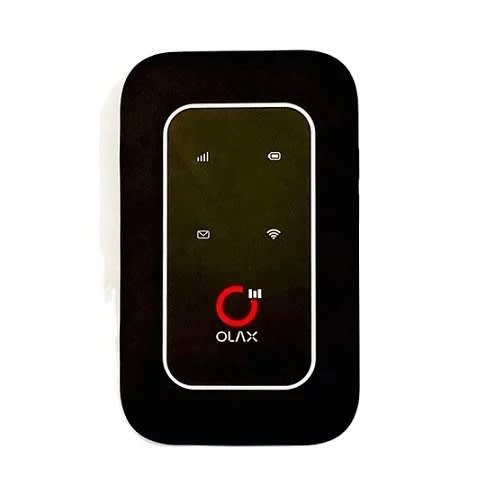
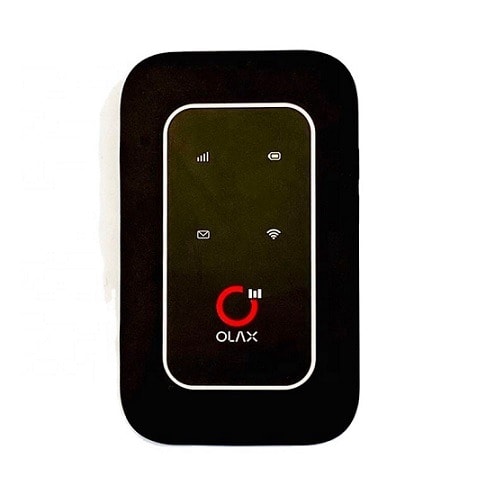
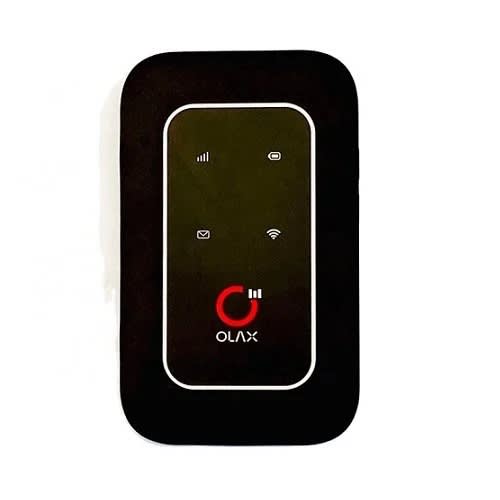
Olax 4g Lte Advanced Mobile Wifi Hotspot Mf980u - Universal
Olax 4g Lte-advanced Mobile Wifi Hotspot Mf980u For All Networks
Olax 4G LTE Advanced Mobile WiFi MF980U Router Hotspot is a newly Launched Latest portable 4G Mi-Fi which supports FDD-LTE/ TDD-LTE/ TD-SCDMA/ WCDMA/ GSM For All Nigerian Networks And All other Global Networks around the world.
You can connect to it via Wi-Fi or USB which will enable you to enjoy a fast navigation and superfast browsing experience.It Supports All mobile, 4G, 4G ONLY, and 3G Networks in Nigeria and across the world.It Supports Ntel 4G, Airtel 4G, Airtel 3G, Swift 4G, Spectranet 4G, MTNg 4G, MTNg 3G, 9Mobile 4G, 9Mobile 3G, GLO 4G, GLO 3G, Smile 4G, Etc...Features of Olax 4G LTE Advanced Mobile WiFi Router Hotspot MF980U;
Cat4 SuperFast 150Mbps speed for Multi-Terminal and mobile Connections
2,100mAh long lasting high quality battery capacity for about 10 hours battery life
150Mbps 2.4GHz LTE High-speed
Can connect to 10 WiFi users/connections at once such as phones, tablets, laptops, computers, etc...
Global Operators compatibility: Supports 4G in B1,B3,B7,B8,B20,B38,B40 making it compliant with global operator networks for support of All Networks in Nigeria and the world
Smart Security Management Features includes WPA2-PSK Enterprise-grade security encryption for your privacy
OLAX 4g Lte Advanced Mobile Wifi Hotspot Mf980u - Universal
Olax 4g Lte-advanced Mobile Wifi Hotspot Mf980u For All Networks
Olax 4G LTE Advanced Mobile WiFi MF980U Router Hotspot is a newly Launched Latest portable 4G Mi-Fi which supports FDD-LTE/ TDD-LTE/ TD-SCDMA/ WCDMA/ GSM For All Nigerian Networks And All other Global Networks around the world.
You can connect to it via Wi-Fi or USB which will enable you to enjoy a fast navigation and superfast browsing experience.It Supports All mobile, 4G, 4G ONLY, and 3G Networks in Nigeria and across the world.It Supports Ntel 4G, Airtel 4G, Airtel 3G, Swift 4G, Spectranet 4G, MTNg 4G, MTNg 3G, 9Mobile 4G, 9Mobile 3G, GLO 4G, GLO 3G, Smile 4G, Etc...Features of Olax 4G LTE Advanced Mobile WiFi Router Hotspot MF980U;
Cat4 SuperFast 150Mbps speed for Multi-Terminal and mobile Connections
2,100mAh long lasting high quality battery capacity for about 10 hours battery life
150Mbps 2.4GHz LTE High-speed
Can connect to 10 WiFi users/connections at once such as phones, tablets, laptops, computers, etc...
Global Operators compatibility: Supports 4G in B1,B3,B7,B8,B20,B38,B40 making it compliant with global operator networks for support of All Networks in Nigeria and the world
Smart Security Management Features includes WPA2-PSK Enterprise-grade security encryption for your privacy
Huawei B310 4G LTE Universal CPE Router For All Networks
Huawei LTE CPE B310 is a new 4G LTE CPE Router with technology that enables you to browse the internet and download at high optimum speed, at home, at your office or at a business center.
It Supports Ntel 4G, Airtel 4G, Airtel 3G, MTN 4G, MTN 3G, 9Mobile 4G, 9Mobile 3G, GLO 4G, GLO 3G, Smile 4G Etc...
Does not support Spectranet and Swift Network in Nigeria.
Key Technology
150MBbps download speed support LTE Cat4, leading the industry
200 meters coverage support Wi-Fi 11n2*2, up to 32 users
HiLink APP: Use smart phone's or pads APP for easier management
VPN Passthriugh: Convenient for small enterprise set up private network.
Voice Service: Support voice function.
Product Specifications
Wi-Fi 802.11 b/g/n access point & 2x2 MIMO, 4 SSID configuration and Wps supported
LTE Cat4/DC-HSPA+/HSPA+/HSPA/UMTS/EDGE/GPRS/ GSM.
FDD LTE: Download speed up to 150Mbps/Upload speed up to 50Mbps @20Mbps.
TDD LTE : Download speed up to 112Mbps/Upload speed up to 10Mbps @20Mbps.
High-speed Data Service & Voice Service.
SMS and Group message (Up to 10 numbers) supported.
Those features vary with the actual network environment.
1. Getting to know your B310
a. Power indicator
- On: the B310 is powered on.
- Off: the B310 is powered off.
b. Network mode indicator
Steady cyan: connected to an LTE network
Steady blue: connected to a 3G network.
Steady yellow: connected to a 2G network.
Steady green: connected to an Ethernet network.
Steady red: The SIM is not recognized, the PIN has not been entered, or the PIN verification failed
Failed to connect to a mobile network or an Ethernet network.
c. Wi-Fi/WPS indicator
- Steady on: Wi-Fi turned on.
- Blinking: a WPS connection is being set up.
- Off: Wi-Fi turned off.
d. LAN/WAN
- Steady on: LAN/WAN port is connected to a LAN device or an Ethernet port.
- Blinking: data is being transmitted through the LAN/WAN port.
- Off: LAN/WAN port is not connected to a LAN device or an Ethernet port.
e. Signal Strength indicator
- On: signal reception available (more bars mean better reception)
- Off: no reception.
f. SIM card slot
- Install a standard SIM card to access the internet via an LTE/3G/2G data connection.
g. External antenna port
- Connect to external antenna after remove the cover.
h. WPS button
- Press and hold for 2 or more seconds until is blinking to active WPS connection when Wi-Fi is turned on.
i. Power button
- Press and hold for about 3 seconds to power the B310 on or off.
j. Reset button
- Restoring the default settings of the B310 will erase all previous settings.
When the B310 is powered on, use a sharply pointed object to press and hold for about 3 seconds until indicator is blinking to restore the B310 to its factory settings. After the factory defaults are restored, the B310 will restart automatically.
k. Power port
- Connect to compatible power adapter
l. LAN/WAN port
- Working as a LAN port when connected to a computer, switch, or other LAN device.
- Working as a WAN port when connected to an Ethernet port on the wall.
m. Telephone port: connect to a telephone.
2. Installation
a. Accessing the Internet using an LTE, 3G, or 2G network
step 1: Installing the SIM card
- Slide off the card slot cover
- Insert the SIM card into the card slot. Ensure that the beveled edge of the SIM card aligns with that of the card slot.
- Close the card slot cover.
Step 2: Connecting cables
- To prevent interference caused by radio signals, place the B310 at least 1 meter (3.28 feet) away from telephone and other electrical devices.
Once connected to a power outlet, the B310 automatically powers on
- Power adapter
- Computer
- Telephone
- Laptop, tablet, or smart phone.
Optional: Installing the external antenna
- Power off the B310 and disconnect it from the power outlet.
- Remove the cover from the antenna port. (keep it in a safe place)
- Install one or two external antennas as you need. Make sure the anntennas are securely connected to the antenna ports.
b. Accessing the Internet using Ethernet
Connect the B310 to a well-mounted Ethernet port or an ADSL modern for internet access.
- To prevent interference caused by radio signals, place the B310 at least 1 meter (3.28 feet) away from telephone and other electrical devices.
once connected to a power outlet, the B310 automatically powers on.
- Power adapter
- Ethernet port on the wall
- Telephone
- Laptop, tablet, or smart phone
3. Setting up a Wi-Fi connection
make sure your client (computer, tablet, or smartphone) also supports wi-fi
Step 1: Enabling Wi-Fi on the B310
When the indicator is steady on, the Wi-Fi function of the B310 is tured on.
Step 2: Recording the SSID and Wi-Fi Key
The default SSID and Wi-Fi key are printed on the B310 botton label.
Step 3: Setting up a Wi-Fi connection on your client
method 1: Setting up a Wi-Fi connection manually
- From your Wi-Fi enabled client, scan for wireless networks in your area
- Connect to the network name that matches the SSID found on the device label.
- When prompted for password, enter the Wi-Fi key found on the device label (The Wi-Fi key is case sensitive). Your client will notify you when it is connected.
method 2: Setting up a Wi-Fi connection through WPS
if the client supports WPS, you can set up a WPS connection as follows:
- Ensure that Wi-Fi is enabled on the client.
- Press and hold the WPS button for 2 or more seconds. The indicator then starts blinking.
- Activate the WPS connection on the client in 2 minutes.
4. Configuring your B310
- After a client is connected to the B310 through Wi-Fi or LAN port, launch a browser on the client and visit //192.168.8.1.
- Enter the user name (admin by default) and password (admin by default) to log in to the web management page.
- Follow the quick setup wizard to check or set network connection parameters step by step. For details , see the help information on the web management page.
5. For more help
if you are experiencing any issues with the B310
Restart the B310
see the help infomation on the web management page.
Restore the B310 to its factory settings.
Contact your service provider
Get the B310 LTE CPE Router , and you will be glad you did.
-
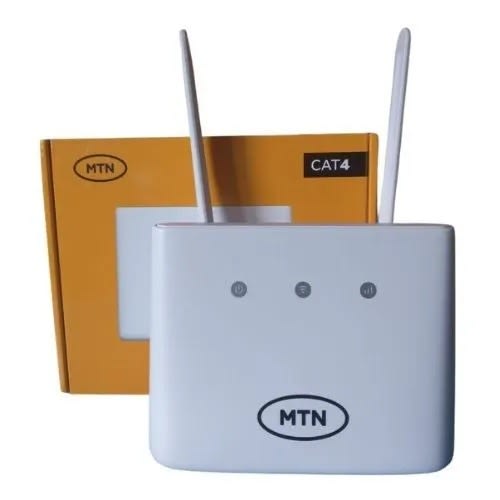
MTN 4G Broadband Router - MF293N + Free 50GB Data Bonus On Activation - White
Features & Specification: 4G Router• Colour: White• Model: MF293N• Device Category: CAT-4• MIMO for wireless: 4x4 MIMO Band: B3/B7/B38/B40/B41/B42/B43• Dimensions: 130mm x 100mm x 46mm• Weight: 155g• Battery: 4000mAh (backup power for the router during a power outage• Network: Compatible with 3G and 4G network spectrums• Main antenna: Two LTE (Internal) Main antenna, one is for high frequency, the other is for Low and Medium frequency. Two external antenna interfaces• WiFi users’ access: up to 32 WiFi users simultaneously (on 2.4G & 32 5G WiFi bands)• WiFi security: Yes (configurable settings)• Browser: Compatible with Internet Explorer, Firefox, Safari, Opera & Chrome browsers• Network cable: 1 LAN cable is included in the package• Sim card slot: Yes• Power switch: Plug and play• Reset button: Button located at the back of the router (to restore factory default configurations)• WPS button: Button located at the back of the router (to activate the PBC (Push Button Config) function and wake device up)• WLAN button: Button located at the back of the router (to turn WiFi on or off)• Maximum power consumption: 12W• IP filter: IP/MAC/Port/URL filter• Firewall switch: Yes• Online Upgrade: Yes (DM – FOTA)
Customer Benefits:• Instant 50GB bonus data upon purchase and activation of the device.• Connect anywhere across the country, in 3G and 4G coverage areas, at superfast speeds• Connect multiple users from a single router• Enjoy affordability and convenience while connecting multiple branch offices in different locations to a single data subscription!• Stream, upload and download with ease• Activate flexible data plans (unlimited and capped) that suit your needs.
WHAT’S IN THE BOX• 1 4G Router• 1 Charger• 1 UPS (Battery)• 1 RJ5 network cable• 2 External Antennae• 1 device manual• 1 User guide• 1 MTN SIM card