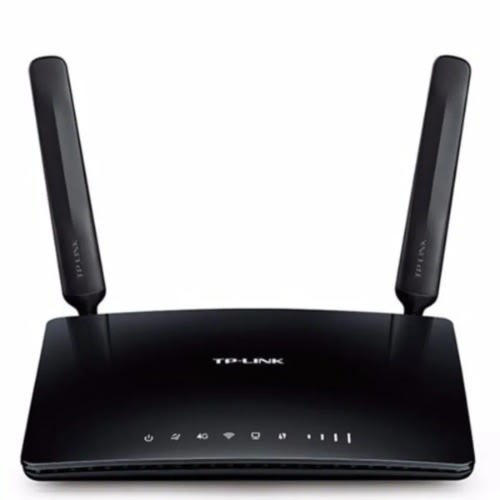
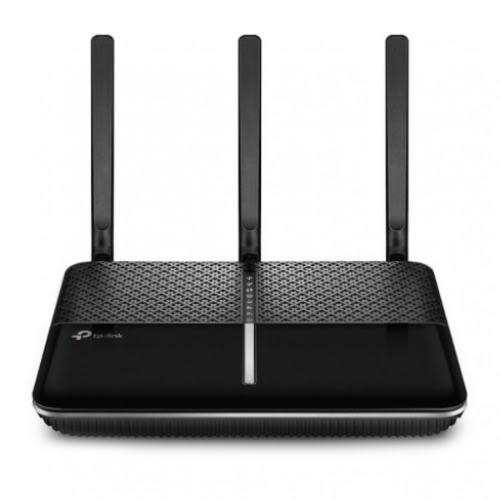
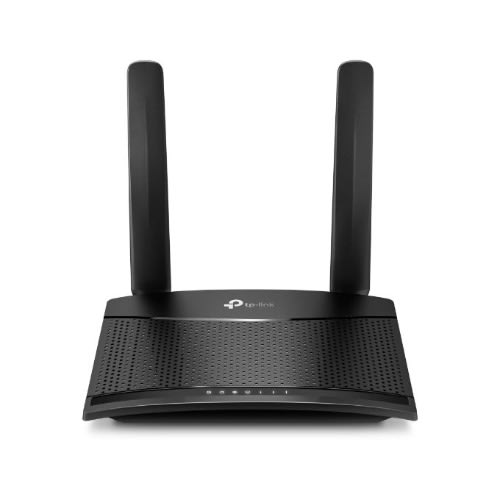
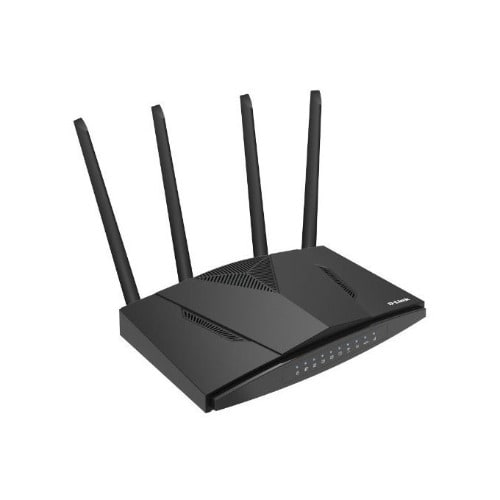
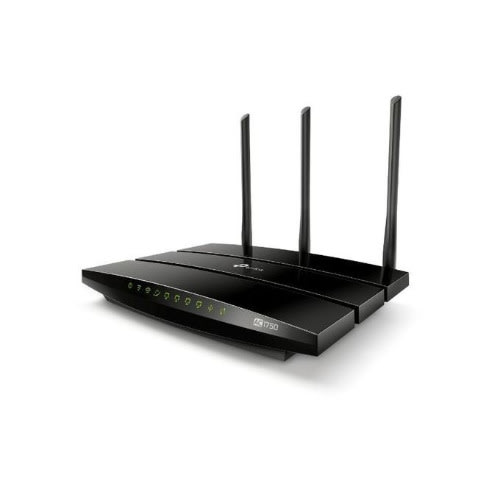
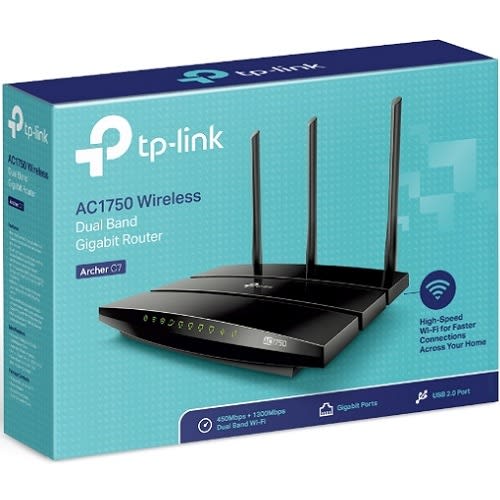
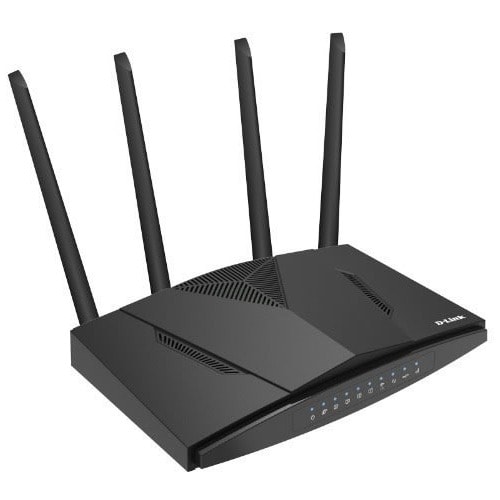
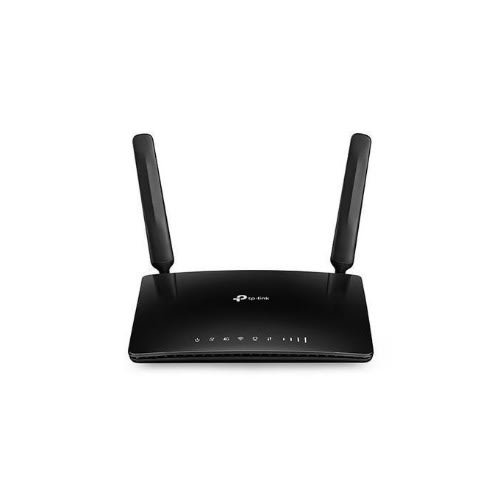
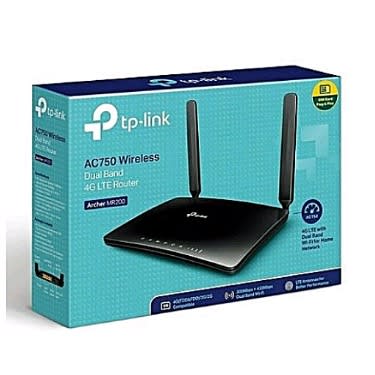
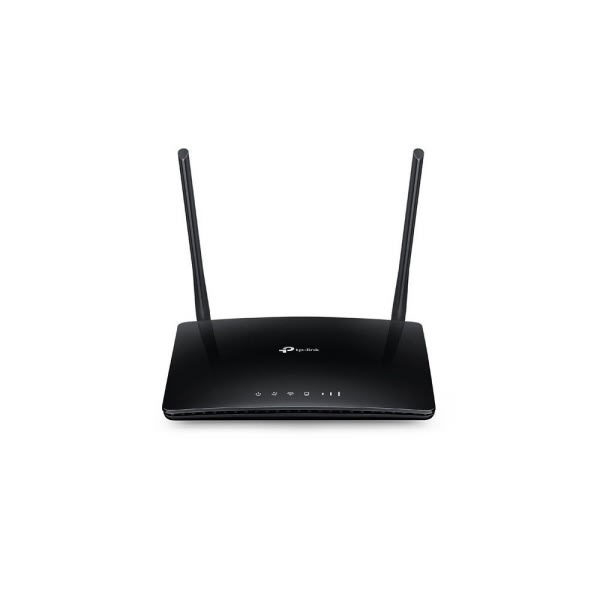
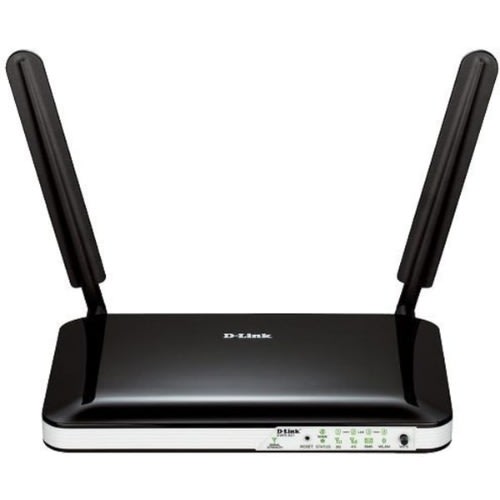
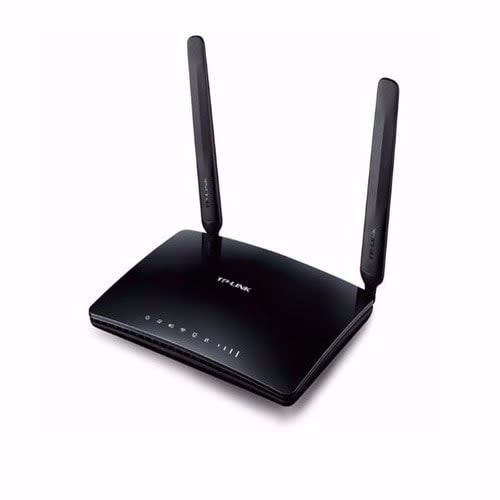
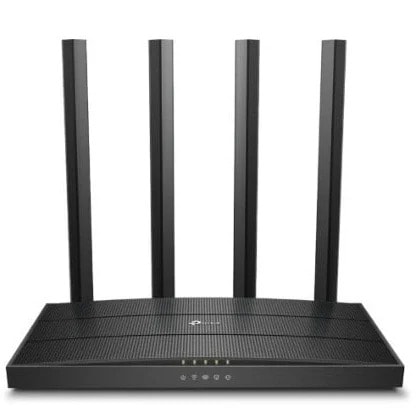
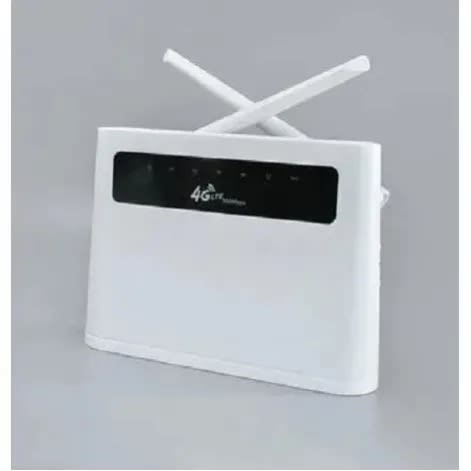
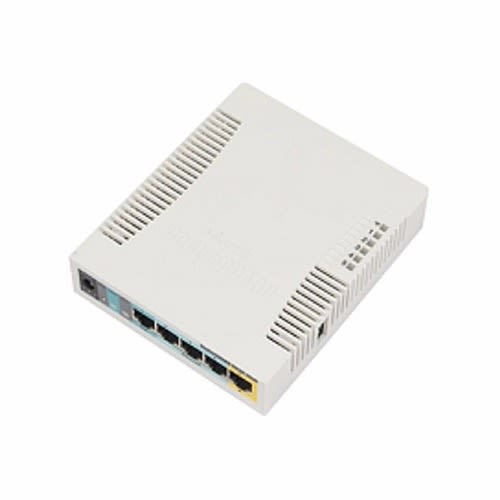
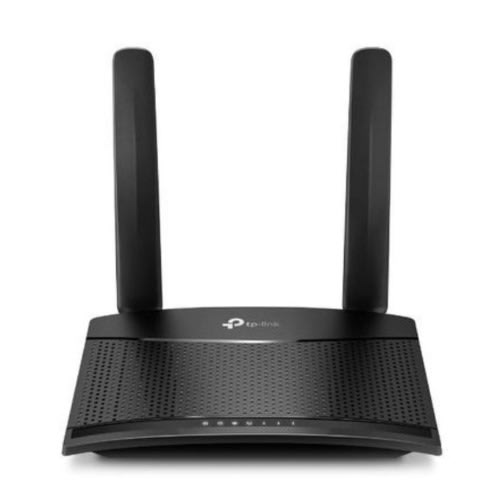
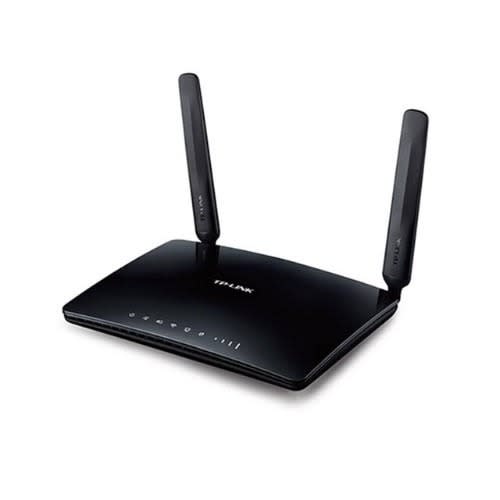
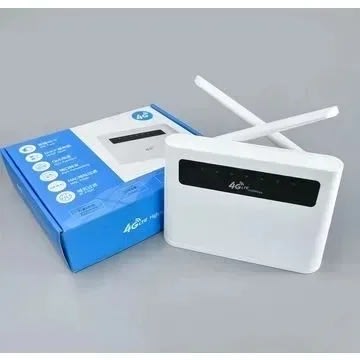
Archer Mr200 Ac750 Wireless Dual Band 4g Lte Router
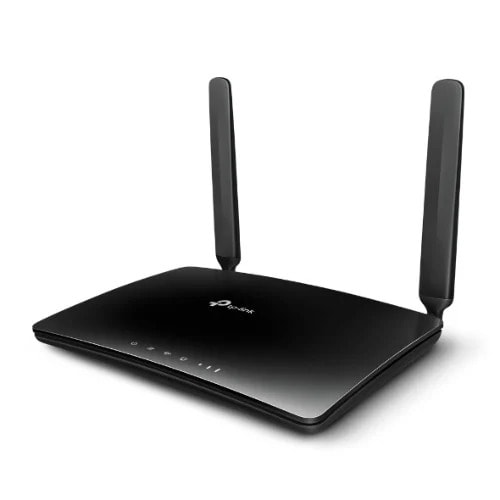
The Archer MR200 offers unmatched convenience and versatility. The ability to quickly establish powerful wireless networks can be tremendously important. The Archer MR200 is the perfect solution whether you're at home or working in a remote location. Just plug it in to boost on-site productivity and stay connected in a diverse range of environments. From the exhibition center to the RV, the Archer MR200 has you covered.
The Archer MR200 can easily share a 3G/4G connection with up to 64 wireless devices like tablets, laptops and mobile phones at the same time. It can also provide internet access for desktop computers via the LAN ports.\
The Archer MR200 Uses 4G LTE Technology To Achieve Speeds Of Up To 150Mbps Download And 50Mbps Upload. It Also Shares A Simultaneous Dual Bandg Wi-Fi Network With Maximum Speeds Of 300Mbps On 2.4GGHz And 433Mbps On 5GHz For Gaming, Streaming, File-sharing and more.
Connects up to 64 wireless devices with ease, thanks to a powerful qualcomm processor that boosts data transfer speeds while ensuring dependable network stability.
Simply insert your 3G/4G SIM Card into the built-in slot, turn on the MR200 and start surfing.
With a fully functional WAN/LAN Port, enjoy a variety of backup connection types, including cable, fiber and DSL modems.
LTE: Download Speeds 150Mbps + Upload speeds 50Mbps
Wireless: 300Mbps on 2.4GHz+ 433Mbps on 5GHz
Antennas: 3 Internal Wi-Fi Antennas, 2 Detachable External 4G LTE Antennas
Ports: 1 10/100Mbps LAN/WAN + 3 10/100Mbps LAN
Dimensions: 7.95 x 5.55 x 1.32 in (202 x 141 x 33.6mm)
Compatible with majority of mobile operators and supports 4G/3G/2G
FDD - LTE: B1/B3/B7/B8/B20
(2100/1800/2600/900/800MHz)
TDD - LTE: B38/B39/B40/B41
(2600/1900/2300/2500MHz)
DC - HSPA +/HSPA/UTMTS B1/B8
(2100/900MHz)
EDGE/GPRS/GSM:
850/900/1800/1900MHz
Package Content:
AC750 Wireless Dual Band Router
Power Adapter
RJ45 Ethernet Cable
Quick Installation Guide
Micro To Standard SIM Card Adapter
Nano To Standard SIM Card Adapter
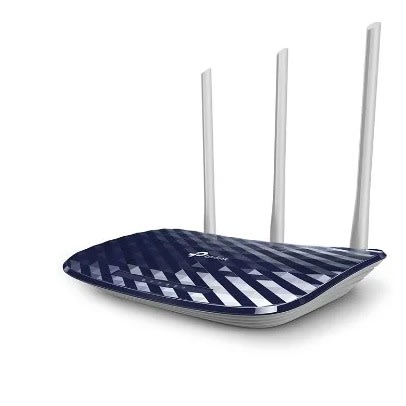
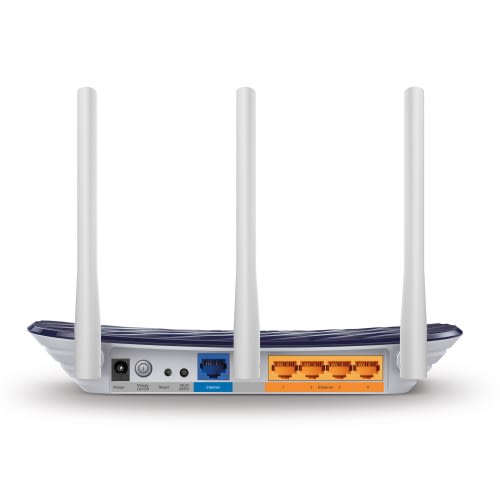
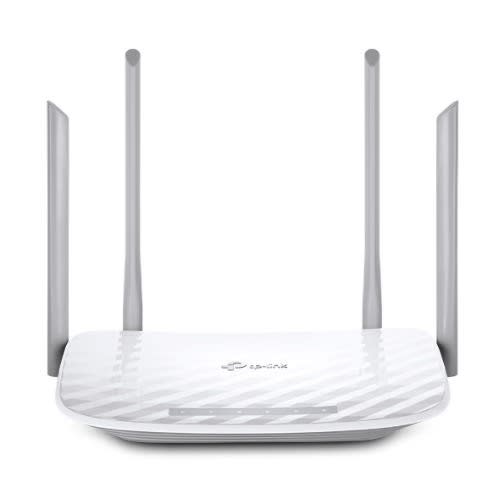
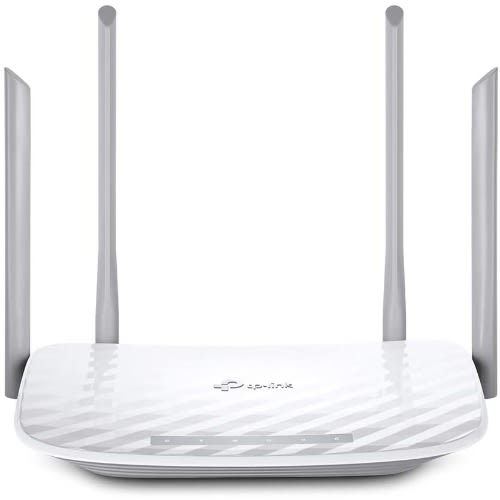
Archer C50 Ac1200 Dual Band Access Point/ Wireless Router
Strong,Far-Reaching Wi-FiAC1200 Wireless Dual Band RouterArcher C50High-Speed Dual Band Wi-Fi for Better ConnectionsThe Archer C50 lets your PC or laptop enjoy connections 3x faster than Wireless N with Wireless AC technology.With 300Mbps over the 2.4GHz band and 867Mbps over the the crystal clear 5GHz band, the Archer C50 isthe superior choice for seamless HD streaming, online gaming and other bandwidth-intensive tasks.
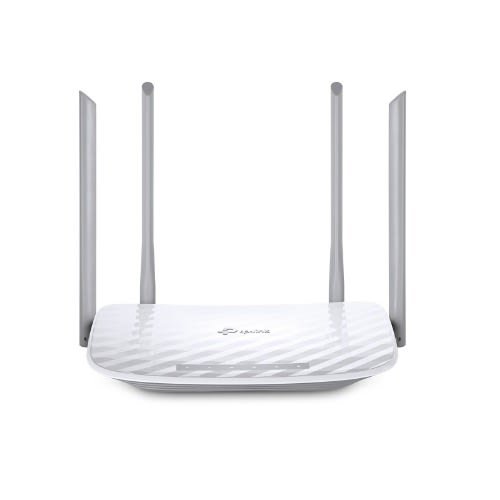
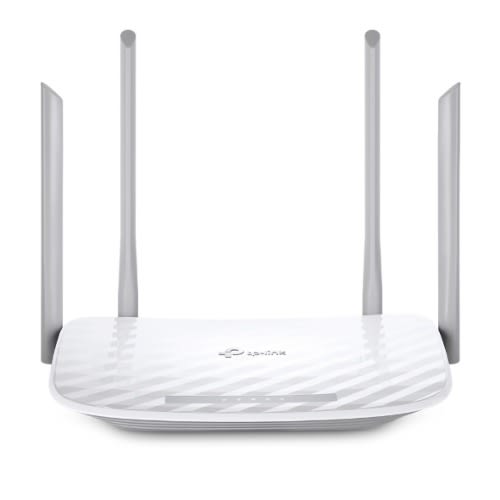
867Mbps5GHz300Mbps2.4GHzInnovative Antenna Design for Maximum CoverageFour well-ordered antennas make all of your connections more efficient and stable. Advanced antenna technology increases the receiving sensitivity to enlarge Wi-Fi coverage for your home.
Easy Parental ControlSupervise children and staff with responsible access, controlled by parents or administrators. Use key words to easily set up a black list and limit the level of web access.
Guest Network AccessAllow guests to join your Wi-Fi network, while protecting your privacy. Make sharing easy, maintain security.
Efficient Guest Authentication with FacebookCaptive portal helps maintain only authorized guests to use the network, presenting devices with a convenient, user-friendly authentication method to grant Wi-Fi access. Easily share your facebook account to anyone who connects to your network.
Easy Setup and UseSet up the Archer C50 in minutes thanks to its intuitive web interface and the powerful Tether app. Tether also lets you manage its network settings from any Android or iOS device, including parental controls and access control.
Features
IEEE 802.11b/g/n Compatible
300 Mb/s Wireless Transmission Rate
2.4 - 2.4835 GHz
Complete IP Bandwidth Control
10/100 Mb/s LAN/WAN
Wi-Fi Protected Setup Button
2 x Integrated Internal Antennas
Intuitive Access Control
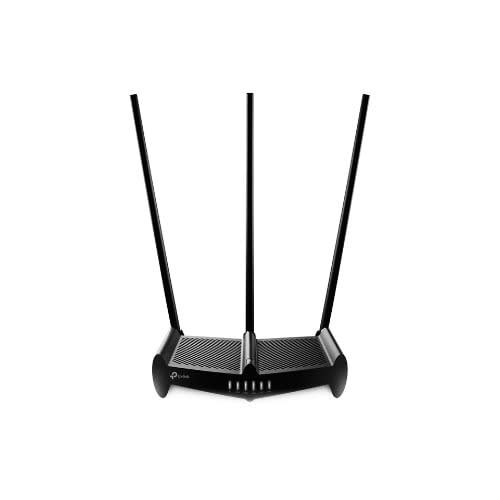
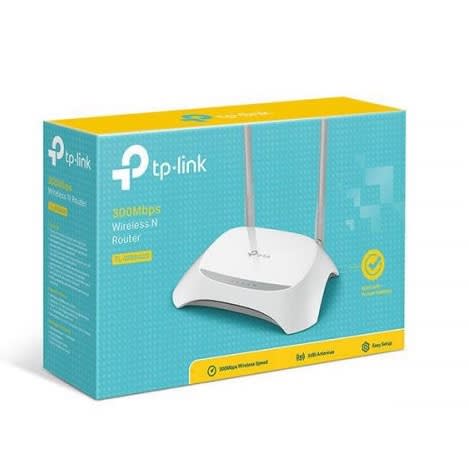
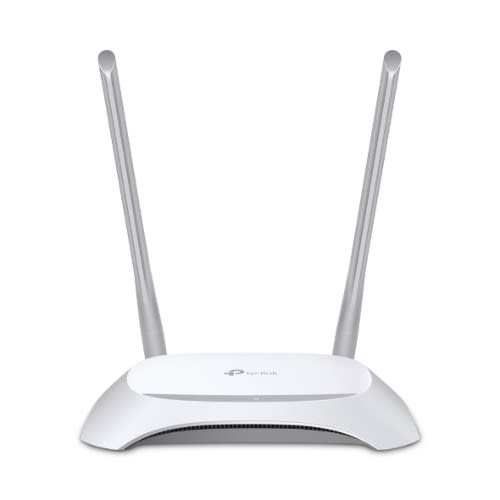
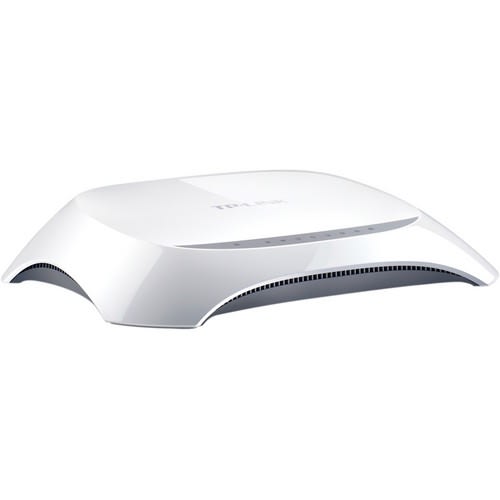
The TL-WR840N 300 Mb/s Wireless N Router from TP-Link is a combined wired/wireless network connection device designed specifically for small business and home office networking requirements. The wireless router delivers an exceptional and advanced wireless performance, making it ideal for streaming HD videos, VoIP, and online gaming. In addition, the Wi-Fi Protected Setup (WPS) button on the sleek and fashionable exterior ensures WPA2 encryption, blocking the network from outside intrusions. The router is a high-speed solution that is compatible with IEEE 802.11b/g/n. Based on 802.11n technology, this router delivers wireless performance at up to 300 Mb/s, which can meet your most demanding home networking needs, such as HD streaming, online gaming, and large files downloading.
Within the wireless network, indiscriminate Internet surfing and bandwidth guzzling downloads by internal users often leave homes or small offices with insufficient bandwidth. The router supports an IP QoS function, allowing optimum utilization of bandwidth and offering bandwidth control over congestion, preventing bandwidth abuse. In this way, users of a small network receive committed and specific bandwidth, preventing non-critical applications from degrading network performance.
The device comes with a CD featuring the Easy Setup Assistant that leads users through the setup process step-by-step, and even helps with wireless network settings and security configurations.
The TL-WR840N wireless N router provides an astounding speed of up to 300 Mb/s, which makes it ideal for bandwidth consuming or interruption sensitive applications like video streaming, online gaming, and VoIP.
2T2R MIMO technology delivers greater throughput at range compared to conventional 1T1R
Clear Channel Assessment (CCA) automatically avoids channel conflicts using its clear channel selection feature and fully realizes the advantages of channel binding, greatly enhancing wireless performance.
Easily set up a WPA encrypted secure connection at a push of the WPS button
The WDS wireless bridge provides seamless bridging to expand your wireless network. Wi-Fi On/Off Button allows users to simply turn their wireless radio on or off
QoS function ensures high quality of VoIP and multimedia streaming
Parental control function manages Internet access of children or an employee's computer
Provides support for virtual server, special applications, and DMZ host that is ideal for creating a website within your LAN
Auto-mail function for system log - convenient for managing the router
Backwards compatible with 802.11b/g products
Easy Setup Assistant enables fast and hassle-free installation
Sleek exterior enables mounting on a wall or horizontal placement on a table or desk
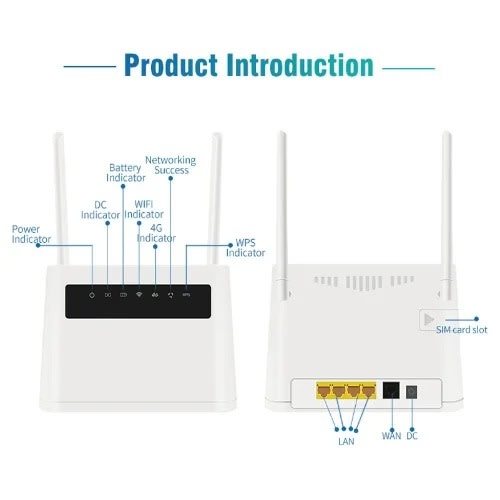
Main Features:
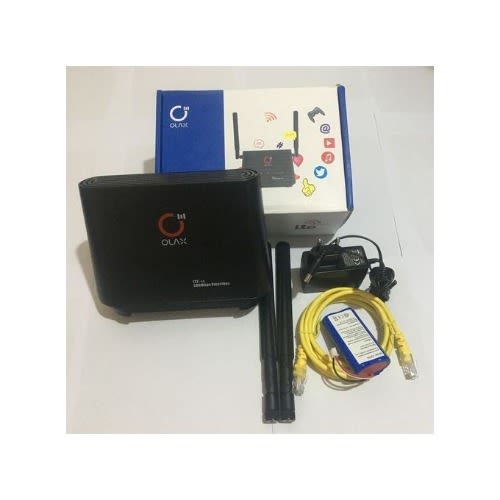
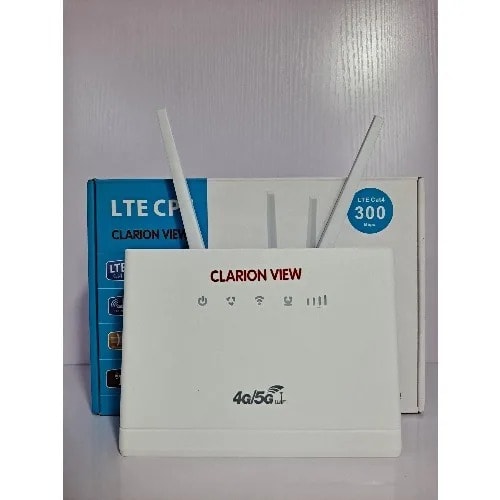
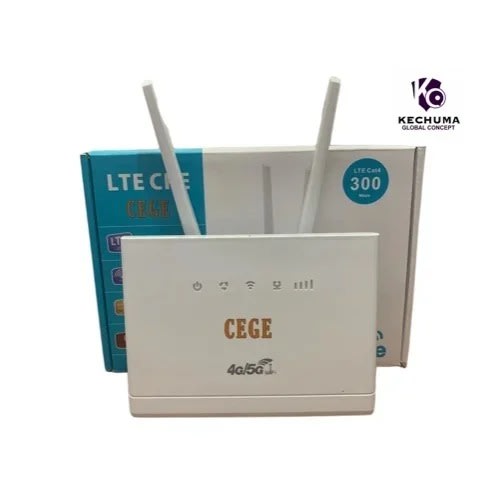
--The terminal can support three communication modes: TDD FDD, WCDMA
-- LTE CAT4 upto 150Mbps
-- Up to 32 Wi-Fiaccesses atthe same time.
-- Built-in 4 antenna
-- Low power consumption
-- There is no broadband, there is also a network, and a standard SIM card can be inserted.
-- 2 network cable interface, WAN interface + 4LAN interface
-- Cooling vent design at the bottom to ensure stable operation
-- Small size and easy to carry.
Specifications:
Description:
Frequency Bands:
Notes: This router is unlcoked. But different operators have different frequency bands in different countries. Please check the router whether work with your operator or refer to below chat. If you country if not in it, please call your operator to get frequeny bands it runs or check in below website. //en.wikipedia.org/wiki/List_of_LTE_networks
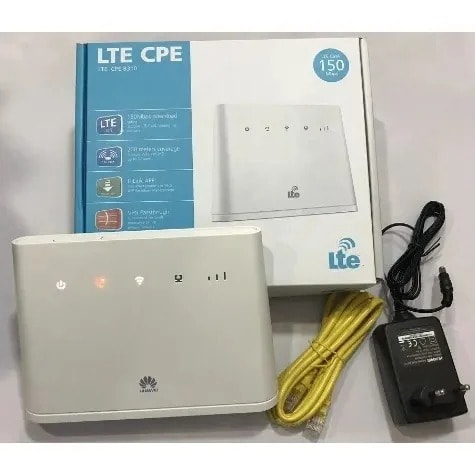
Huawei - 4g Lte Universal Cpe Router For All Networks - B310
Colour
White
Brand
USB
YesYes
Connectivity
WiFi Only
Number of Ports
1 Port
The portable router featured with high performance of stable signal transmission and long durability. Perfect for travel, home and office.
2.5mm /50 Metres--Site-Industrial Electrical Long Connection Extension Cord Reels & Cable
1 * 4G Wireless Wifi Router
1 * User Manual
High Speed
Accepts all Sim(Universal)
Durable
Well Ventilated
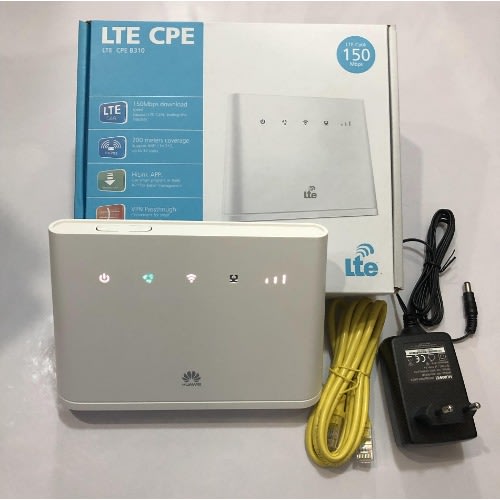
Huawei LTE CPE B310 is a new 4G LTE CPE Router with technology that enables you to browse the internet and download at high optimum speed, at home, at your office or at a business center.
It Supports Ntel 4G, Airtel 4G, Airtel 3G, MTN 4G, MTN 3G, 9Mobile 4G, 9Mobile 3G, GLO 4G, GLO 3G, Smile 4G Etc...
It does not support Spectranet and Swift Network in Nigeria.
Key Technology
150MBbps download speed support LTE Cat4, leading the industry
200 meters coverage support Wi-Fi 11n2*2, up to 32 users
HiLink APP: Use smart phone's or pads APP for easier management
VPN Passthriugh: Convenient for small enterprise set up private network.
Voice Service: Support voice function.
Product Specifications
Wi-Fi 802.11 b/g/n access point & 2x2 MIMO, 4 SSID configuration and Wps supported
LTE Cat4/DC-HSPA+/HSPA+/HSPA/UMTS/EDGE/GPRS/ GSM.
FDD LTE: Download speed up to 150Mbps/Upload speed up to 50Mbps @20Mbps.
TDD LTE : Download speed up to 112Mbps/Upload speed up to 10Mbps @20Mbps.
High-speed Data Service & Voice Service.
SMS and Group message (Up to 10 numbers) supported.
Those features vary with the actual network environment.
1. Getting to know your B310
a. Power indicator
- On: the B310 is powered on.
- Off: the B310 is powered off.
b. Network mode indicator
Steady cyan: connected to an LTE network
Steady blue: connected to a 3G network.
Steady yellow: connected to a 2G network.
Steady green: connected to an Ethernet network.
Steady red: The SIM is not recognized, the PIN has not been entered, or the PIN verification failed
Failed to connect to a mobile network or an Ethernet network.
c. Wi-Fi/WPS indicator
- Steady on: Wi-Fi turned on.
- Blinking: a WPS connection is being set up.
- Off: Wi-Fi turned off.
d. LAN/WAN
- Steady on: LAN/WAN port is connected to a LAN device or an Ethernet port.
- Blinking: data is being transmitted through the LAN/WAN port.
- Off: LAN/WAN port is not connected to a LAN device or an Ethernet port.
e. Signal Strength indicator
- On: signal reception available (more bars mean better reception)
- Off: no reception.
f. SIM card slot
- Install a standard SIM card to access the internet via an LTE/3G/2G data connection.
g. External antenna port
- Connect to external antenna after remove the cover.
h. WPS button
- Press and hold for 2 or more seconds until is blinking to active WPS connection when Wi-Fi is turned on.
i. Power button
- Press and hold for about 3 seconds to power the B310 on or off.
j. Reset button
- Restoring the default settings of the B310 will erase all previous settings.
When the B310 is powered on, use a sharply pointed object to press and hold for about 3 seconds until indicator is blinking to restore the B310 to its factory settings. After the factory defaults are restored, the B310 will restart automatically.
k. Power port
- Connect to compatible power adapter
l. LAN/WAN port
- Working as a LAN port when connected to a computer, switch, or other LAN device.
- Working as a WAN port when connected to an Ethernet port on the wall.
m. Telephone port: connect to a telephone.
2. Installation
a. Accessing the Internet using an LTE, 3G, or 2G network
step 1: Installing the SIM card
- Slide off the card slot cover
- Insert the SIM card into the card slot. Ensure that the beveled edge of the SIM card aligns with that of the card slot.
- Close the card slot cover.
Step 2: Connecting cables
- To prevent interference caused by radio signals, place the B310 at least 1 meter (3.28 feet) away from telephone and other electrical devices.
Once connected to a power outlet, the B310 automatically powers on
- Power adapter
- Computer
- Telephone
- Laptop, tablet, or smart phone.
Optional: Installing the external antenna
- Power off the B310 and disconnect it from the power outlet.
- Remove the cover from the antenna port. (keep it in a safe place)
- Install one or two external antennas as you need. Make sure the anntennas are securely connected to the antenna ports.
b. Accessing the Internet using Ethernet
Connect the B310 to a well-mounted Ethernet port or an ADSL modern for internet access.
- To prevent interference caused by radio signals, place the B310 at least 1 meter (3.28 feet) away from telephone and other electrical devices.
once connected to a power outlet, the B310 automatically powers on.
- Power adapter
- Ethernet port on the wall
- Telephone
- Laptop, tablet, or smart phone
3. Setting up a Wi-Fi connection
make sure your client (computer, tablet, or smartphone) also supports wi-fi
Step 1: Enabling Wi-Fi on the B310
When the indicator is steady on, the Wi-Fi function of the B310 is tured on.
Step 2: Recording the SSID and Wi-Fi Key
The default SSID and Wi-Fi key are printed on the B310 botton label.
Step 3: Setting up a Wi-Fi connection on your client
method 1: Setting up a Wi-Fi connection manually
- From your Wi-Fi enabled client, scan for wireless networks in your area
- Connect to the network name that matches the SSID found on the device label.
- When prompted for password, enter the Wi-Fi key found on the device label (The Wi-Fi key is case sensitive). Your client will notify you when it is connected.
method 2: Setting up a Wi-Fi connection through WPS
if the client supports WPS, you can set up a WPS connection as follows:
- Ensure that Wi-Fi is enabled on the client.
- Press and hold the WPS button for 2 or more seconds. The indicator then starts blinking.
- Activate the WPS connection on the client in 2 minutes.
4. Configuring your B310
- After a client is connected to the B310 through Wi-Fi or LAN port, launch a browser on the client and visit //192.168.8.1.
- Enter the user name (admin by default) and password (admin by default) to log in to the web management page.
- Follow the quick setup wizard to check or set network connection parameters step by step. For details , see the help information on the web management page.
5. For more help
if you are experiencing any issues with the B310
Restart the B310
see the help infomation on the web management page.
Restore the B310 to its factory settings.
Contact your service provider
Get the B310 LTE CPE Router , and you will be glad you did
Colour
White
Brand
USB
YesYes
Connectivity
Ethernet
Number of Ports
4 Ports
TP-LINK & rsquo;s Archer C50 comes with the next generation Wi-Fi standard & ndash; 802.11ac, 3 times faster than wireless N speeds and delivering a combined wireless data transfer rate of up to 1.2Gbps. With 300Mbps over the 2.4GHz band and 867Mbps wireless speeds over the crystal clear 5GHz band, the Archer C50 is the superior choice for seamless HD streaming, online gaming and other bandwidth-intensive tasks.
1.2Gbps Dual Band Connections for Lag-Free Work and EntertainmentThe Archer C50 operates over both the 2.4GHz and 5GHz bands, ensuring amazing wireless performance. Simultaneous Dual Band offers you the flexibility of two dedicated networks & ndash; with multiple times the bandwidth for your needs. Simple tasks like sending e-mails or web browsing can be handled by the 2.4GHz band while bandwidth intensive tasks like online gaming or HD video streaming can be processed by the 5GHz band & ndash; all at the same time.
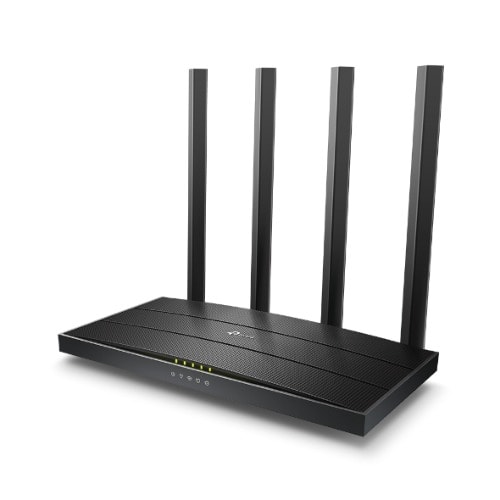
2 External Antennas for Optimal CoverageWith 2 external antennas combined with high quality antenna technology, you can maintain high speeds across greater distances. This provides you with optimal wireless coverage and reliability from anywhere in your large home or office.
USB Port for Storage and SharingWith USB 2.0 port, you can share a printer locally and files & media with networked devices or remotely via FTP server.
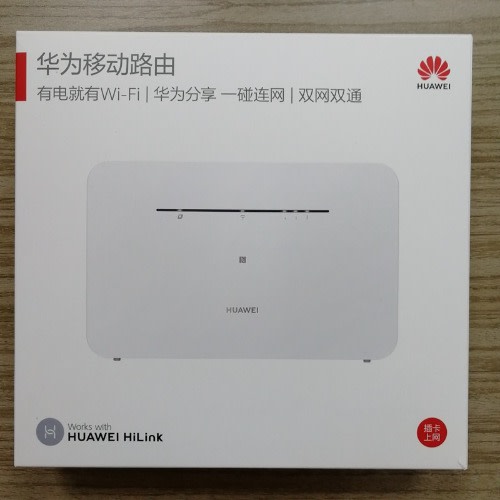
Huawei B310 4g Lte Universal Cpe Router For All Networks
Huawei LTE CPE B310 is a new 4G LTE CPE Router with technology that enables you to browse the internet and download at high optimum speed, at home, at your office or at a business center.
It Supports Ntel 4G, Airtel 4G, Airtel 3G, MTN 4G, MTN 3G, 9Mobile 4G, 9Mobile 3G, GLO 4G, GLO 3G, Smile 4G Etc...
Does not support Spectranet and Swift Network in Nigeria.
Key Technology
150MBbps download speed support LTE Cat4, leading the industry
200 meters coverage support Wi-Fi 11n2*2, up to 32 users
HiLink APP: Use smart phone's or pads APP for easier management
VPN Passthriugh: Convenient for small enterprise set up private network.
Voice Service: Support voice function.
Product Specifications
Wi-Fi 802.11 b/g/n access point & 2x2 MIMO, 4 SSID configuration and Wps supported
LTE Cat4/DC-HSPA+/HSPA+/HSPA/UMTS/EDGE/GPRS/ GSM.
FDD LTE: Download speed up to 150Mbps/Upload speed up to 50Mbps @20Mbps.
TDD LTE : Download speed up to 112Mbps/Upload speed up to 10Mbps @20Mbps.
High-speed Data Service & Voice Service.
SMS and Group message (Up to 10 numbers) supported.
Those features vary with the actual network environment.
1. Getting to know your B310
a. Power indicator
- On: the B310 is powered on.
- Off: the B310 is powered off.
b. Network mode indicator
Steady cyan: connected to an LTE network
Steady blue: connected to a 3G network.
Steady yellow: connected to a 2G network.
Steady green: connected to an Ethernet network.
Steady red: The SIM is not recognized, the PIN has not been entered, or the PIN verification failed
Failed to connect to a mobile network or an Ethernet network.
c. Wi-Fi/WPS indicator
- Steady on: Wi-Fi turned on.
- Blinking: a WPS connection is being set up.
- Off: Wi-Fi turned off.
d. LAN/WAN
- Steady on: LAN/WAN port is connected to a LAN device or an Ethernet port.
- Blinking: data is being transmitted through the LAN/WAN port.
- Off: LAN/WAN port is not connected to a LAN device or an Ethernet port.
e. Signal Strength indicator
- On: signal reception available (more bars mean better reception)
- Off: no reception.
f. SIM card slot
- Install a standard SIM card to access the internet via an LTE/3G/2G data connection.
g. External antenna port
- Connect to external antenna after remove the cover.
h. WPS button
- Press and hold for 2 or more seconds until is blinking to active WPS connection when Wi-Fi is turned on.
i. Power button
- Press and hold for about 3 seconds to power the B310 on or off.
j. Reset button
- Restoring the default settings of the B310 will erase all previous settings.
When the B310 is powered on, use a sharply pointed object to press and hold for about 3 seconds until indicator is blinking to restore the B310 to its factory settings. After the factory defaults are restored, the B310 will restart automatically.
k. Power port
- Connect to compatible power adapter
l. LAN/WAN port
- Working as a LAN port when connected to a computer, switch, or other LAN device.
- Working as a WAN port when connected to an Ethernet port on the wall.
m. Telephone port: connect to a telephone.
2. Installation
a. Accessing the Internet using an LTE, 3G, or 2G network
step 1: Installing the SIM card
- Slide off the card slot cover
- Insert the SIM card into the card slot. Ensure that the beveled edge of the SIM card aligns with that of the card slot.
- Close the card slot cover.
Step 2: Connecting cables
- To prevent interference caused by radio signals, place the B310 at least 1 meter (3.28 feet) away from telephone and other electrical devices.
Once connected to a power outlet, the B310 automatically powers on
- Power adapter
- Computer
- Telephone
- Laptop, tablet, or smart phone.
Optional: Installing the external antenna
- Power off the B310 and disconnect it from the power outlet.
- Remove the cover from the antenna port. (keep it in a safe place)
- Install one or two external antennas as you need. Make sure the anntennas are securely connected to the antenna ports.
b. Accessing the Internet using Ethernet
Connect the B310 to a well-mounted Ethernet port or an ADSL modern for internet access.
- To prevent interference caused by radio signals, place the B310 at least 1 meter (3.28 feet) away from telephone and other electrical devices.
once connected to a power outlet, the B310 automatically powers on.
- Power adapter
- Ethernet port on the wall
- Telephone
- Laptop, tablet, or smart phone
3. Setting up a Wi-Fi connection
make sure your client (computer, tablet, or smartphone) also supports wi-fi
Step 1: Enabling Wi-Fi on the B310
When the indicator is steady on, the Wi-Fi function of the B310 is tured on.
Step 2: Recording the SSID and Wi-Fi Key
The default SSID and Wi-Fi key are printed on the B310 botton label.
Step 3: Setting up a Wi-Fi connection on your client
method 1: Setting up a Wi-Fi connection manually
- From your Wi-Fi enabled client, scan for wireless networks in your area
- Connect to the network name that matches the SSID found on the device label.
- When prompted for password, enter the Wi-Fi key found on the device label (The Wi-Fi key is case sensitive). Your client will notify you when it is connected.
method 2: Setting up a Wi-Fi connection through WPS
if the client supports WPS, you can set up a WPS connection as follows:
- Ensure that Wi-Fi is enabled on the client.
- Press and hold the WPS button for 2 or more seconds. The indicator then starts blinking.
- Activate the WPS connection on the client in 2 minutes.
4. Configuring your B310
- After a client is connected to the B310 through Wi-Fi or LAN port, launch a browser on the client and visit //192.168.8.1.
- Enter the user name (admin by default) and password (admin by default) to log in to the web management page.
- Follow the quick setup wizard to check or set network connection parameters step by step. For details , see the help information on the web management page.
5. For more help
if you are experiencing any issues with the B310
Restart the B310
see the help infomation on the web management page.
Restore the B310 to its factory settings.
Contact your service provider
Get the B310 LTE CPE Router , and you will be glad you did.
-
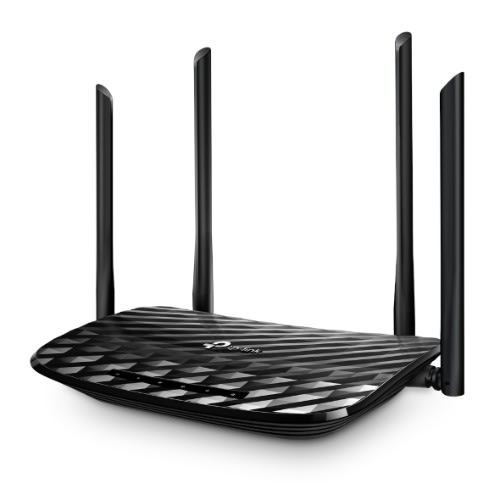
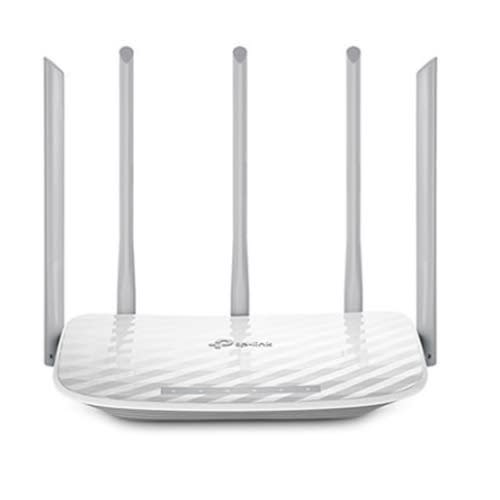
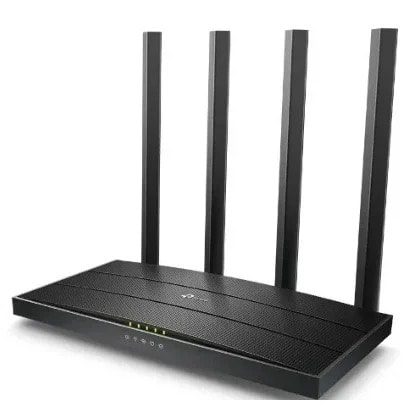
The Archer C6 creates a reliable and blazing-fast network powered by 802.11ac Wi-Fi technology. The 2.4GHz band delivers speeds up to 300Mbps, ready for everyday tasks like emailing and web browsing, while the 5GHz band delivers speeds up to 867Mbps, ideal for HD video streaming and lag-free online gaming. Four external antennas and one internal antenna send Wi-Fi signals to every corner of your home. Stay connected and enjoy fast Wi-Fi whether you are lounging on the sofa or on the balcony.With a powerful chipset, the Archer C6 provides ideal Wi-Fi coverage. The 2.4GHz band coverage is especially impressive, eliminating Wi-Fi dead zones and beating that of other competing routers.MU-MIMO lets the Archer C6 serve multiple devices at once. No more bandwidth congestion or latency.
All devices get their data faster and Wi-Fi is used more efficiently! With one Gigabit WAN port and four Gigabit LAN ports, speeds can be up to 10 & times; faster than standard Ethernet connections. Connect your favorite wired devices to the Archer C6 and get impressed! The free Tether app is available for both Android and iOS devices, making it easy to set up the Archer C6 and manage your network settings.
Smooth Entertainment with AC1200 Dual Band Wi-Fi
Supports 802.11ac standard
Simultaneous 2.4GHz 300 Mbps and 5GHz 867 Mbps connections for 1200 Mbps of total available bandwidth
4 external antennas and one internal antenna provide stable wireless connections and optimal coverage
Easy network management at your fingertips with TP-Link Tether
MU-MIMO achieves 2X efficiency by communicating with up to 2 devices at once
Beamforming technology delivers wider wireless coverage
Supports Access Point mode to create a new Wi-Fi access point
Smooth Entertainment with AC1200 Dual Band Wi-Fi
The Archer C6 creates a reliable and blazing-fast network powered by 802.11ac Wi-Fi technology. The 2.4GHz band delivers speeds up to 300Mbps, ready for everyday tasks like emailing and web browsing, while the 5GHz band delivers speeds up to 867Mbps, ideal for HD video streaming and lag-free online gaming.
5 High-Performance Antennas Wi-Fi Coverage Throughout Your HomeFour external antennas and one internal antenna send Wi-Fi signals to every corner of your home. Stay connected and enjoy fast Wi-Fi whether you are lounging on the sofa or on the balcony. With a powerful chipset, the Archer C6 provides ideal Wi-Fi coverage. The 2.4GHz band coverage is especially impressive, eliminating Wi-Fi dead zones and beating that of other competing routers.
It & rsquo;s An Access Point, TooSwitch the working mode of the Archer C6 to Access Point Mode to share your wired network with other wireless devices.
MU-MIMO Matters Increase Speed, Throughput, CapacityMU-MIMO lets the Archer C6 serve multiple devices at once. No more bandwidth congestion or latency. All devices get their data faster and Wi-Fi is used more efficiently!
Gigabit Connectivity, 10 & times; FasterWith one Gigabit WAN port and four Gigabit LAN ports, speeds can be up to 10 & times; faster than standard Ethernet connections. Connect your favorite wired devices to the Archer C6 and get impressed!
Easy Setup and Management with the Tether APPThe free Tether app is available for both Android and iOS devices, making it easy to set up the Archer C6 and manage your network settings.
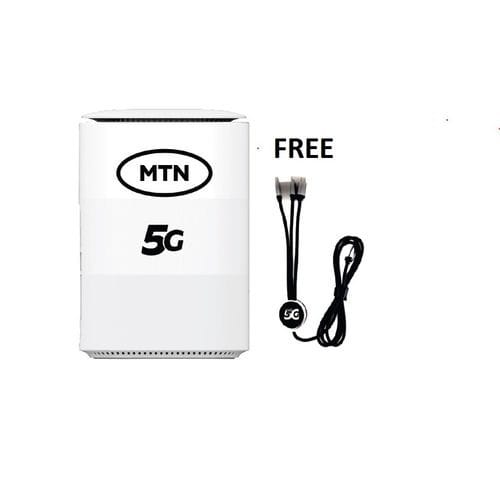
5g Broadband Router + Free 100GB Data Bonus On Activation - White
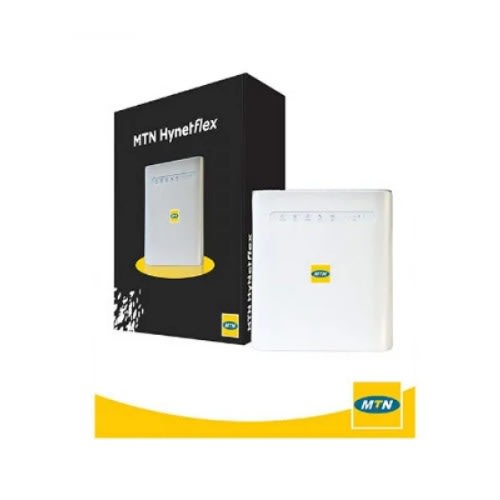
A router is a device that connects to a wireless network and allows multiple devices to use the same Internet connection. An MTN 5G router does just that, but in this case, connects to MTN & rsquo;s 5G network and allows you to share it via a WiFi hotspot to your smartphone, laptop, tablet, etc. MTN 5G router allows you to connect up to 32 devices and comes with a 100 GB data bonus on activation.
Customer Benefits:
Access to super-fast browsing. MTN Broadband 5G Router offers faster speed and performance than 3G & 4G.Connecting multiple devices (up to 32) to the Router.Superior streaming, gaming, data download, and uploads. Online games and videos are faster, smoother, and more realistic.Wide Wi-Fi connection range.
100GB data bonus on activation.
What you get
5G Network10x Faster than 4GSuperior StreamingEasy to InstallMultiple Devices Connectivity: WiFi + LAN
Wide Wi-Fi connection range.
Colour
White
Brand
Huawei LTE CPE B310 is a new 4G LTE CPE Router with technology that enables you to browse the internet and download at high optimum speed, at home, at your office or at a business center.
It Supports Ntel 4G, Airtel 4G, Airtel 3G, MTN 4G, MTN 3G, 9Mobile 4G, 9Mobile 3G, GLO 4G, GLO 3G, Smile 4G Etc...
It does not support Spectranet and Swift Network in Nigeria.
Key Technology
150MBbps download speed support LTE Cat4, leading the industry
200 meters coverage support Wi-Fi 11n2*2, up to 32 users
HiLink APP: Use smart phone's or pads APP for easier management
VPN Passthriugh: Convenient for small enterprise set up private network.
Voice Service: Support voice function.
Product Specifications
Wi-Fi 802.11 b/g/n access point & 2x2 MIMO, 4 SSID configuration and Wps supported
LTE Cat4/DC-HSPA+/HSPA+/HSPA/UMTS/EDGE/GPRS/ GSM.
FDD LTE: Download speed up to 150Mbps/Upload speed up to 50Mbps @20Mbps.
TDD LTE : Download speed up to 112Mbps/Upload speed up to 10Mbps @20Mbps.
High-speed Data Service & Voice Service.
SMS and Group message (Up to 10 numbers) supported.
Those features vary with the actual network environment.
1. Getting to know your B310
a. Power indicator
- On: the B310 is powered on.
- Off: the B310 is powered off.
b. Network mode indicator
Steady cyan: connected to an LTE network
Steady blue: connected to a 3G network.
Steady yellow: connected to a 2G network.
Steady green: connected to an Ethernet network.
Steady red: The SIM is not recognized, the PIN has not been entered, or the PIN verification failed
Failed to connect to a mobile network or an Ethernet network.
c. Wi-Fi/WPS indicator
- Steady on: Wi-Fi turned on.
- Blinking: a WPS connection is being set up.
- Off: Wi-Fi turned off.
d. LAN/WAN
- Steady on: LAN/WAN port is connected to a LAN device or an Ethernet port.
- Blinking: data is being transmitted through the LAN/WAN port.
- Off: LAN/WAN port is not connected to a LAN device or an Ethernet port.
e. Signal Strength indicator
- On: signal reception available (more bars mean better reception)
- Off: no reception.
f. SIM card slot
- Install a standard SIM card to access the internet via an LTE/3G/2G data connection.
g. External antenna port
- Connect to external antenna after remove the cover.
h. WPS button
- Press and hold for 2 or more seconds until is blinking to active WPS connection when Wi-Fi is turned on.
i. Power button
- Press and hold for about 3 seconds to power the B310 on or off.
j. Reset button
- Restoring the default settings of the B310 will erase all previous settings.
When the B310 is powered on, use a sharply pointed object to press and hold for about 3 seconds until indicator is blinking to restore the B310 to its factory settings. After the factory defaults are restored, the B310 will restart automatically.
k. Power port
- Connect to compatible power adapter
l. LAN/WAN port
- Working as a LAN port when connected to a computer, switch, or other LAN device.
- Working as a WAN port when connected to an Ethernet port on the wall.
m. Telephone port: connect to a telephone.
2. Installation
a. Accessing the Internet using an LTE, 3G, or 2G network
step 1: Installing the SIM card
- Slide off the card slot cover
- Insert the SIM card into the card slot. Ensure that the beveled edge of the SIM card aligns with that of the card slot.
- Close the card slot cover.
Step 2: Connecting cables
- To prevent interference caused by radio signals, place the B310 at least 1 meter (3.28 feet) away from telephone and other electrical devices.
Once connected to a power outlet, the B310 automatically powers on
- Power adapter
- Computer
- Telephone
- Laptop, tablet, or smart phone.
Optional: Installing the external antenna
- Power off the B310 and disconnect it from the power outlet.
- Remove the cover from the antenna port. (keep it in a safe place)
- Install one or two external antennas as you need. Make sure the anntennas are securely connected to the antenna ports.
b. Accessing the Internet using Ethernet
Connect the B310 to a well-mounted Ethernet port or an ADSL modern for internet access.
- To prevent interference caused by radio signals, place the B310 at least 1 meter (3.28 feet) away from telephone and other electrical devices.
once connected to a power outlet, the B310 automatically powers on.
- Power adapter
- Ethernet port on the wall
- Telephone
- Laptop, tablet, or smart phone
3. Setting up a Wi-Fi connection
make sure your client (computer, tablet, or smartphone) also supports wi-fi
Step 1: Enabling Wi-Fi on the B310
When the indicator is steady on, the Wi-Fi function of the B310 is tured on.
Step 2: Recording the SSID and Wi-Fi Key
The default SSID and Wi-Fi key are printed on the B310 botton label.
Step 3: Setting up a Wi-Fi connection on your client
method 1: Setting up a Wi-Fi connection manually
- From your Wi-Fi enabled client, scan for wireless networks in your area
- Connect to the network name that matches the SSID found on the device label.
- When prompted for password, enter the Wi-Fi key found on the device label (The Wi-Fi key is case sensitive). Your client will notify you when it is connected.
method 2: Setting up a Wi-Fi connection through WPS
if the client supports WPS, you can set up a WPS connection as follows:
- Ensure that Wi-Fi is enabled on the client.
- Press and hold the WPS button for 2 or more seconds. The indicator then starts blinking.
- Activate the WPS connection on the client in 2 minutes.
4. Configuring your B310
- After a client is connected to the B310 through Wi-Fi or LAN port, launch a browser on the client and visit //192.168.8.1.
- Enter the user name (admin by default) and password (admin by default) to log in to the web management page.
- Follow the quick setup wizard to check or set network connection parameters step by step. For details , see the help information on the web management page.
5. For more help
if you are experiencing any issues with the B310
Restart the B310
see the help infomation on the web management page.
Restore the B310 to its factory settings.
Contact your service provider
Get the B310 LTE CPE Router , and you will be glad you did.